This article describes the best approaches to designing and implementing workflows in Maximo. The intention is to achieve two key objectives:
- Efficient and flexible business processes for users
- Easy maintenance for administrators and Maximo consultants
The recommendations in this article are drawn from my own experience implementing workflows for clients over the years, as well as things I’ve learnt (or stolen) from other people I’ve had the opportunity to work with.
Instead of following the usual approach of defining the problem first and then presenting the solution, I’ll start by presenting an implementation design. I’ll then explain some of the key elements of the design and why I believe they provide a better solution.
Given the workflow requirement below, which is often found in the utility sector:
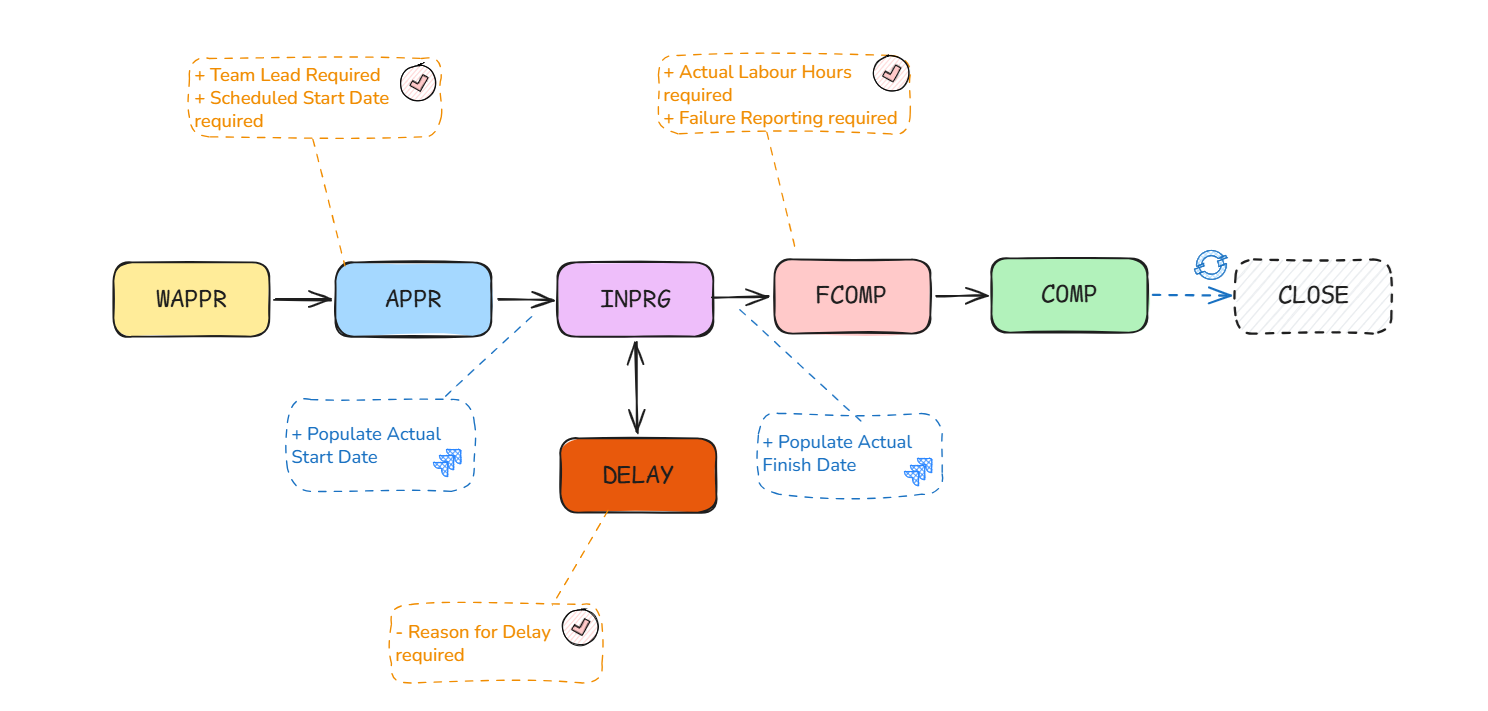
- WAPPR: Work order created by the Control Room / Operations Centre
- APPR: Planner/Supervisor assigns the work order to a field lead
- INPRG: Field crew starts the work
- DELAY: Work cannot progress due to various reasons
- FCOMP: Field crew completes the work
- COMP: All administrative tasks are completed, and the collected data is reviewed by the Planner/Supervisor
- CLOSE: The work order is automatically closed by cron task after 90 days and all claims, invoices, POs have been closed.
Below is how the workflow can be built in Maximo:
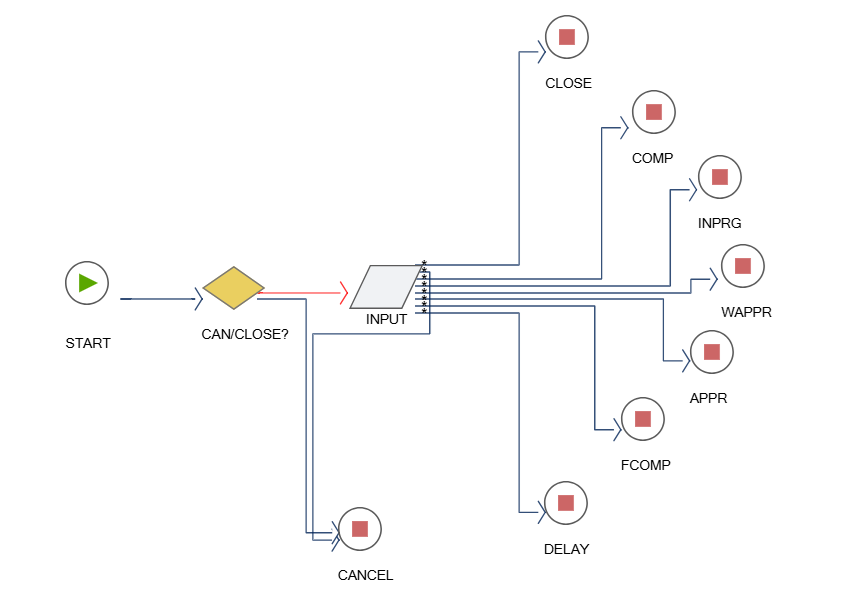
Status Progression: This approach only utilises Maximo’s workflow functionality to control the status progression of work orders. The available user input options are controlled by the Expression Condition associated with each option.
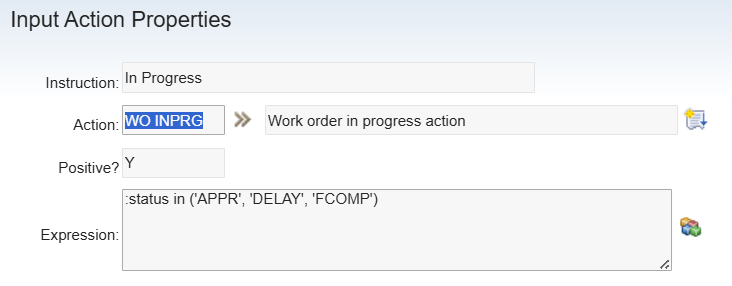
For example, if only the following status progressions are allowed to move a work order to INPRG:
- APPR → INPRG: Natural progression
- DELAY → INPRG: Resuming work after a delay
- FCOMP → INPRG: Undoing an incorrect status update when the work has not been completed
To restrict the user option to change a work order’s status to INPRG to the three scenarios above, we can apply an Expression Condition to the INPRG user input option, as shown below:
Workflow vs Status Domain Restriction: While the same logic above can be applied using domain conditions, workflow is preferred because it provides more features if needed, such as email notifications and labelling of user input options. Workflow is also easier to read and maintain than Domain restrictions.
Assignment: Workflow assignment is probably the number one source of complaints from users due to its inflexibility. This approach does not utilise any workflow assignment nodes at all. Instead, assignments are controlled through careful design of Start Centers and Saved Queries.
For example, a team leader will have a Start Center with the following two portlets/result sets:
- Work orders assigned to me
- Work orders assigned to my work zone
The basic principle here is that users will only see work orders assigned directly to them based on the status and responsibility fields. For example, a work order will appear in a team leader’s list if it is Approved and their name is in the Lead field. If the work order needs to be reassigned to someone else, the Planner only needs to update the value of the Lead field. It will then automatically move to the new assignee’s work list.
Benefits: This approach is much more flexible than using workflow assignment nodes, as it is easier for users to manage and update. To reassign a work order, the user only needs to update the relevant fields, such as status, lead, work group, etc. No rerouting or delegation is required.
It is also much easier for the Maximo Administrator to maintain the workflow, as no workflow revision is required. The Workflow Administration application therefore becomes largely irrelevant.
Validation and Action: The handling of validation and custom logic will be delegated to a single automation script:
- Script Name: OBJ_WORKORDER_SAVE
- Launch Point:
- Object Launch Point: WORKORDER
- Event: Save – Update – Before Save
- Script Code:
By including as much validation and action logic as possible in a single script, this approach provides a number of advantages:
- Easier to write and maintain code, it also supports version control
- Easier to control the execution order of different validation and action logic
- Consistent behaviour when combining both workflow-driven and direct status changes
Note: If it is necessary to incorporate Maximo’s standard security functionality by using the Security Groups application to assign different user roles and restrict their permission to change a work order to specific statuses, you can also add the code provided in this article: Enforcing Status Security in Maximo Workflow
Parting words: As businesses mature, their work processes often evolve considerably. As such, it is critical to implement workflows that are flexible and easy to adapt. On the other hand, they also need to be secure and foolproof to ensure data quality and integrity.
The approach described above is a collection of the best practices I have learned over the years. It might not suit everyone, as different organisations may have different requirements. If you have any other suggestions, I would love to hear them and continue to improve.